Tag: Visual FoxPro

  • Your Visual FoxPro App Doesn’t Work on Windows 11

    Your Visual FoxPro App Doesn’t Work on Windows 11

    foxpro microsoft 11 compatability

    You’re definitely not the only one experiencing issues with your Visual FoxPro app on Windows 11. Numerous users are encountering issues with older software as Microsoft enhances its operating systems. Visual FoxPro is a sturdy database application that has been used for a long time. Moreover, it is meant for Windows versions that are older. Since Windows 11 has a modern architecture, legacy stuff like Visual FoxPro may cause errors and problems.


    In this article, we are going to discuss why your FoxPro app could fail on Windows 11 and the ways you could resolve the issue.

    Can I Run Visual FoxPro on Windows 11?

    You can run Visual FoxPro on Windows 11 with proper configuration, as it is compatible with Windows 11. Microsoft no longer supports Visual FoxPro, which means it does not get official updates or patches, enabling it to work properly on new operating systems. Users might see crash and missing part messages or have an error in the system.

    FoxPro is an unsupported FoxPro designation, meaning that Microsoft no longer formally supports FoxPro. You may not receive support for issues you experience while using the software.  

    In other words, you can still run your Visual FoxPro app on Windows 11 if you make the proper adjustments. 

    Let’s look at the most common issues and how to fix them.

    microsoft 11 and visual foxpro

    Why Does My FoxPro App Fail or Crash on Windows 11?

    Your FoxPro app may not run or crash on Windows 11 for a variety of reasons. Here is the breakdown and their solutions.

    1. Compatibility with New OS Architecture

    Visual FoxPro was created for older operating systems like Windows XP and Windows 7. Windows 11, on the other hand, has a modern architecture meant for newer apps. As a result, it can cause compatibility problems and may be difficult to run legacy software like FoxPro.

    The solution could be to run FoxPro in Compatibility Mode. Compatibility modes for older versions of Windows, like Windows XP or the ultimate Windows 7, can be applied at your own discretion so that Fox Pro behaves like it’s on the older OS.

    2. Missing Runtime Libraries.

    FoxPro depends on certain runtime libraries in addition to other system components. These items are not usually installed on Windows 11. If they lack those libraries, the app will not start or work badly.


    To fix the error, download and install the runtime libraries. You can find these libraries from trusted third-party websites. They are no longer available on Microsoft’s site as they are legacy software.

    3. Insufficient Permissions

    If you lack sufficient permission, FoxPro might not work because it needs to access system resources that require administrator permission.


    Right-click on your FoxPro executable file and select Run as Administrator. This gives the app permission to access system resources and run as intended.

    4. Conflicting Software

    In the Windows 11 system, modern applications can affect the functioning of FoxPro. Some apps cause conflict with FoxPro by using the same resources FoxPro needs or grabbing its dependencies.


    Check your Task Manager for other software or processes that interfere. Quit any closed applications you are not using to boost speed.

    5. System Resources

    Windows 11 is built for modern software, which means it prefers a newer application over an older one, such as FoxPro.  Because of this, legacy software might not receive the required memory or processing power, which can cause it to crash or fail.


    A solution is to free up more of your system resources by exiting applications you do not use. You can also assign FoxPro more memory and processing power through the Task Manager.

    6. Error 173

    Many users encounter Error 173, which occurs when Visual FoxPro is unable to load missing or incompatible system files. This error usually means you need runtime libraries or the system is out of date.


    To fix Error 173, reinstall FoxPro so that all required files are present. Furthermore, you can right-click on the executable and click on Run as Administrator and run FoxPro.

    7. Outdated Drivers or Incorrect Configuration

    You might not be able to run FoxPro on Windows 11 because of outdated drivers or an incorrect system configuration. If your system was not configured to support legacy software, crashing is quite many times expected.


    Update your hardware drivers, especially for the video card and audio devices. You can use Device Manager to do this. Moreover, configure your system to provide support for legacy applications like FoxPro.

    How to Run Visual FoxPro on Windows 11

    Now that we’ve covered potential reasons for crashes and failures, here are a few steps to help you run your Visual FoxPro app on Windows 11.

    1. Run FoxPro in Compatibility Mode

    To enable compatibility mode.

    • Right-click the FoxPro executable and select Properties.
    • Go to the Compatibility tab.
    • Select the checkbox of Run this program in compatibility mode for and select Windows XP / Windows 7.

    2. Install Necessary Runtime Libraries

    Visual FoxPro requires specific runtime libraries. As these libraries don’t come pre-installed on Windows 11, you will need to download them from a trusted third-party and install them.

    3. Use Virtual Machines or Emulators

    If compatibility mode did not work, try setting up a virtual machine (VM) with Windows 7. This will isolate FoxPro from the modern system and further prevent compatibility issues.

    4. Update Drivers

    Ensure your hardware drivers are up to date. You can check for updates on your graphics card, audio devices, and other system components using Device Manager or the manufacturer’s software.

    5. Optimize Performance

    If you run legacy apps like FoxPro on modern hardware, they probably won’t work as well as new apps. To make FoxPro run better, close any other applications that you are not using and then assign more resources to it through the Task Manager.

    FoxPro Compatibility Repair and Fixes

    visual foxpro compatibility with microsoft 11

    When none of the above works, then you should get it checked by professionals.  Wizmo provides specialized assistance to fix FoxPro issues and make your application compatible with Windows 11. Our team can help!

    • Resolving Error 173 and other common errors.
    • Installing missing runtime libraries.
    • Configuring your system to support legacy software.
    • Optimizing FoxPro for better performance.

    Fix Your Visual FoxPro on Windows 11

    Having trouble with crashes, Error 173, or missing runtimes? Wizmo can diagnose the root cause, stabilize your app, and set up a reliable Windows 11 environment (including VM options if needed). We’ll audit your setup, remediate issues, and hand you a clear path to long-term stability.

    Contact Wizmo today to get your Visual FoxPro app back on track, fast.

  • Visual FoxPro Keeps Crashing

    Visual FoxPro Keeps Crashing

    visual foxpro crashing errors

    For decades, Accounting System to Inventory Manager are some of the mission-critical applications run on Visual FoxPro (VFP). As dependable as it once was, running VFP on today’s Windows 10 and 11 machines can often be a real headache. Since Microsoft stopped supporting it in 2015, there’s been an increase in crashes, freezes, and weird runtime errors.

    Why Visual FoxPro Struggles on Modern Windows

    1. Compatibility Gaps with Windows 10/11

    VFP was engineered for Windows XP/7-era APIs. Modern systems have different types of kernels, UAC-like security layers and a new memory model. The mismatch in systems often causes instability when the apps attempt to access deprecated APIs.

    2. Missing or Outdated Runtime Libraries

    The runtime components of FoxPro include VFP9R.DLL, VFP9T.DLL, MSVCRT.DLL and VCREDIST.

    3. Memory & GDI Resource Leaks

    VFP has a bad reputation for leaking GDI, which means it does not release graphic resources when forms close. Memory usage in a computer keeps increasing over time, which slows down the computer’s performance.

    4. Outdated Form Controls & Third-Party Components

    Several applications rely on legacy ActiveX controls, OCXs, or unsupported third-party libraries.  These incompatibilities often lead to crashed loops and broken forms.


    Changing the old OCX with a new one solved the problem immediately.

    5. Database & Index Corruption

    Corrupt indexes or tables can masquerade as crash issues. If the index file gets damaged, FoxPro may go into an infinite loop, hang, or crash.

    6. Conflicting Software

    Antivirus tools, virtualisation drivers, or even modern Office add-ins can interfere with FoxPro, leading to instant shutdown or improper functioning.

    How to Fix Visual FoxPro Crashes (Step-by-Step)

    Here is a practical troubleshooting guide with proven fixes from the field:

    1. Turn on Compatibility Mode

    • Go to Compatibility to change the compatibility settings.
    • Choose the option of running in compatibility mode for “Windows 7 (or XP). It mimics the environment for which FoxPro was designed and cures many startup problems.

    2. Install any missing runtime libraries

    • Make sure the VFP9R DLL, VFP9T DLL MSVCRT DLL are Present
    • Install the latest Visual C++ Redistributables (2005–2015).
    • Use Dependency Walker to identify missing DLLs.
    • Use Microsoft only. Do not download random DLLs.

    3. The next step is to fix memory leaks and GDI leaks

    • Apply the VFP 9.0 SP2 hotfixes (there are unofficial patches).
    • Use Windows Performance Monitor to track GDI objects. Counts above 10,000 indicate leaks.
    • Code should have cleanup routines (THISFORM.release).

    4. Change or repair your broken controls

    • Audit all custom controls and OCXs.
    • Replace unsupported components with modern equivalents.
    • For the critical apps, you can stay with VFP at the backend, re-wrap in .NET WinForms or WPF.

    5. Get your database back up and running again

    • Run REINDEX in FoxPro to rebuild corrupt indexes.
    • Take backups automatically to restore corrupted databases.

    6. Use Event Viewer for Diagnostics

    • Open Event Viewer → Windows Logs → Application.
    • Check recent crash logs for ntdll.dll or missing dependencies. 
    • This often pinpoints the failing component.

    7. Check your software and devices

    • Open Task Manager (Ctrl + Shift + Esc).
    • Find and turn off any background processes that are consuming too many system resources.
    • Disable your antivirus or virtualization tools temporarily.

    8. Run FoxPro in a Virtual Machine (VM)

    If all else fails, install Windows 7/XP in a VM (VMware, VirtualBox or Hyper-V).

    • Run FoxPro inside the VM for maximum compatibility.
    • Use shared folders for seamless file access.
    • This guarantees long-term stability while still exploiting current hardware.

    Advanced Fixes Only Pros Use

    • DCOM Modifications: Use REGSVR32 To Re-register Components. 
    • Set the resource off so that FoxPro does not write to corrupted files.
    • Disable High DPI Scaling: To prevent the UI from crashing on a 4K monitor, disable it in compatibility settings
    • By having its own dedicated user profiles, running FoxPro minimizes permission conflicts.

    Preventing Future Crashes & Long-Term Strategies

    Solving Visual FoxPro crashes is only one part of the problem. You also want to prevent them from happening to ensure smooth, long-term use. Here are strategies that help future-proof your systems.

    1. Regular System Updates

    While Windows updates can occasionally lead to incompatibility issues, staying up-to-date ensures that you are using the latest security patches and performance improvements. It is always best practice to test VFP apps in a staging environment before doing critical updates on production machines.

    2. Standardized Runtime Environment

    Run FoxPro in a single standardized setup instead of different PCs with different setups. Having a dedicated VM image or container-like setup means every user will run the same setup, and will reduce random crash causes.

    3. Automated Backups & Index Maintenance

    Corrupt indexes occur regularly, so set these to run and back up your site regularly. If data corruption occurs, a rolling backup allows you to restore it during downtime.

    Code Optimization & Cleanup

    Improperly handled resources in your application code cause most VFP crashes. Review and optimize your codebase.

    • Release unused objects.
    • Dispose of graphical resources after use.
    • Eliminate obsolete dependencies.
    visual foxpro crashing

    Hybrid Migration Strategy

    Although full migration from FoxPro to a modern technology stack may take a lot of investment, a hybrid approach can make the system live longer. For example, you can continue to use VFP as your front end but connect it to either SQL Server or MySQL back ends for stability, scalability, and data integrity.

    Dedicated Support Partner

    When problems arise, it’s always useful to have skilled partners who understand legacy systems. Instead of just trial-and-error, technicians can diagnose deep-level issues before they escalate into downtime.

    When to Call in Experts

    If the crashes persist with your FoxPro even after making the above changes, the issue will go for deeper-level debugging that involves corrupted memory pointers, damaged indexes, or an API call broken by Windows Update.


    Wizmo has helped businesses stabilize their crucial VFP systems by.

    • Debugging runtime errors using VFP logs.
    • Replacing unsupported components with modern alternatives.
    • Moving applications to a hybrid environment (VFP frontend + SQL Server backend)
    • Setting up VM VM-based long-term support solution for future proofing.

    So, by using compatibility mode and runtime libraries, advanced leak monitoring, and other preventive measures, you can keep your apps running stably on Windows 10 and 11. Get help when needed in diagnosis, patching and future-proofing your FoxPro system by contacting Wizmo today, and you can expect such systems to remain robust for years to come.

  • FoxPro to SQL Server Migration

    FoxPro to SQL Server Migration

    visual foxpro migration to sql server

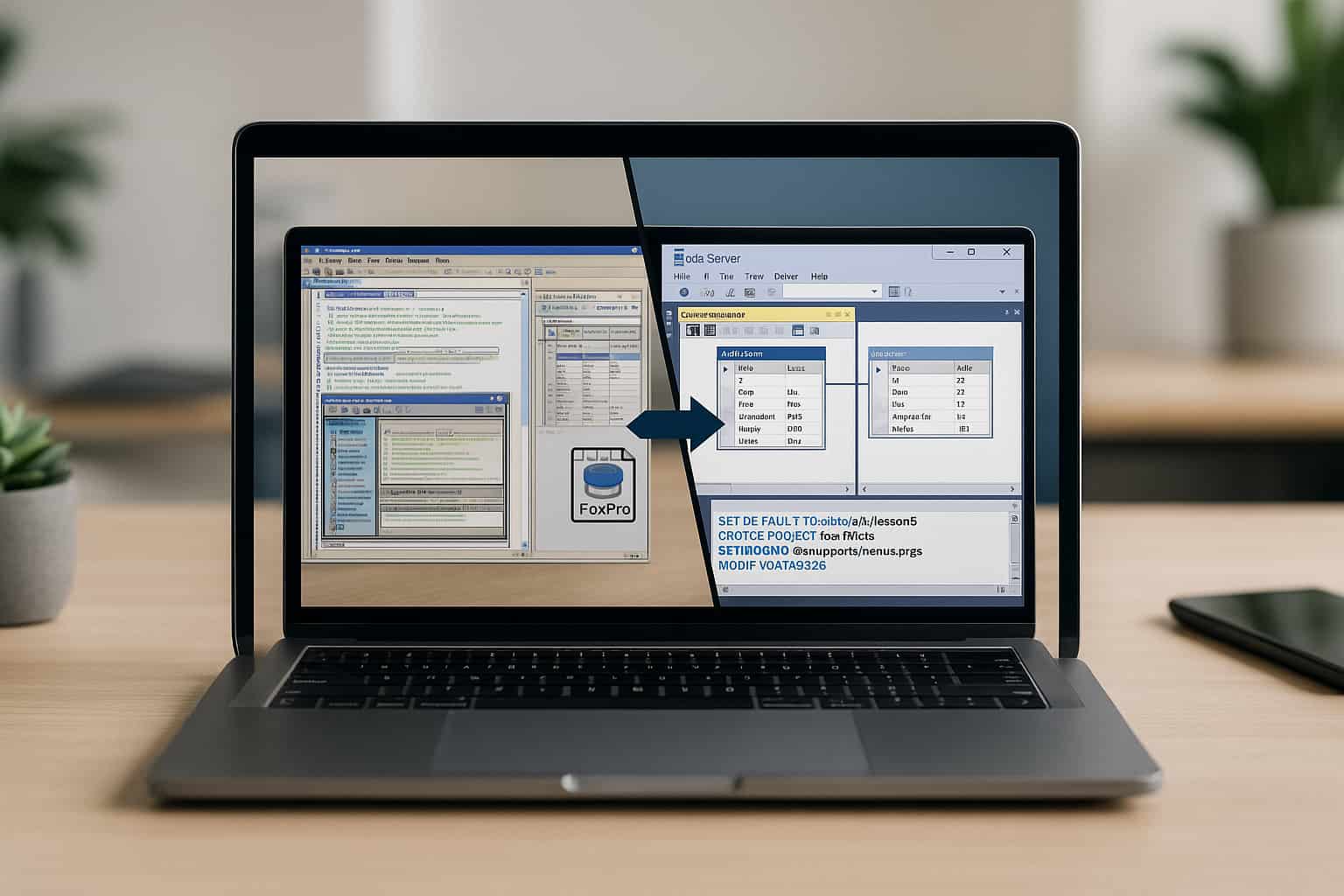
    Moving data from Visual FoxPro (VFP) to SQL Server is a challenging job these days. More and more companies are moving to SQL Server.  Many businesses have remained loyal to the FoxPro legacy system, but need a bigger and better database. SQL Server enables businesses to manage their data securely and reliably with advanced features. Although the FoxPro to SQL conversion process can bring various challenges.


    In this article, we are going to go over the common issues during migration and how to fix them, and how you can ensure the migration is smooth from FoxPro to SQL Server.

    What is Visual FoxPro?

    Visual FoxPro is a computer program that lets you create applications in a variety of dialects. One version of it was produced in the mid-1990s by Microsoft. The program is generally available free of charge. Microsoft stopped providing support for FoxPro in 2007.

    However, many businesses are still using it for data storage and application development.  Today, many users are migrating their FoxPro databases into more powerful systems like SQL Server. That’s simply because FoxPro databases are incompatible with modern technologies.

    Can I Migrate FoxPro to SQL Server?

    The switch from FoxPro to SQL Server is a possibility that requires planning and execution.  There are various processes, including moving your data, altering DBF to SQL conversion, rewriting queries and many more. We highlight challenges and solutions that can make your project migration successful in the future.

    migrating visual foxpro to an sql server

    Common Challenges in FoxPro to SQL Migration

    1. Data Type Incompatibility

    When migrating data from Visual FoxPro to SQL Server, the first challenge is the difference in data types between the databases.  FoxPro employs DBF files, which are organized differently compared to SQL Server’s data format. If data types are mismatched, one can face data corruption or loss if not handled properly.

    2. Table Denormalization

    Data within FoxPro is stored in a denormalized format, which is efficient for some desktop applications but not optimized for a relational SQL Server model. When transferring data to SQL Server, we need table normalization. The process of segregation of data to eliminate duplication and improve efficiency through proper relationships.

    3. Stored Procedures and Business Logic

    FoxPro’s approach to stored procedures is different from SQL Server’s approach. FoxPro uses embedded business logic in the application. SQL Server uses Server-side stored procedures to process the data. The migration group rewrites business logic as SQL Server stored procedures. While time-consuming, this is essential for database performance.

    4. Linked Server Integration

    When your FoxPro system works with other databases or any other database, you must configure a linked server in SQL Server. It can be somewhat tricky since FoxPro uses a different connection mechanism than SQL Server, which might fail to work.  Setting up linked servers properly will control your data well.

    5. Index and View Migration

    FoxPro can speed things up with indexes and views, but they may not be compatible with SQL Server’s indexing mechanics. If indexes aren’t migrated correctly or optimized properly in SQL Server, performance can slow down. According to SQL Server best practices, the indexes should be rebuilt, and views should be modified.

    How to Migrate FoxPro Database to SQL Server

    Migrating your FoxPro database to SQL Server involves several important steps to ensure that the process goes smoothly. Here’s how you can tackle the migration.

    Step 1: Pre-Migration Assessment

    Conduct a detailed assessment of your FoxPro database before migration.  It includes identifying data structure, table design, relationships, etc. Review the currently existing FoxPro queries and logic that should be redone in SQL Server.  Make a record of tables and relationships with special integrations.

    Step 2: Table Normalization

    Suitably normalize the FoxPro tables for the relational model SQL Server requires. We will remove duplicate data and re-arrange the tables to conform to the best database design. The normalization of database tables will make your SQL Server work faster and bigger, ensuring that it can adapt.

    Step 3: Converting the Database to SQL

    Afterward, you need to convert the DBF files into a table format compatible with SQL Server. To convert DBF to SQL, you can use built-in migration tools or third-party solutions. Before you start the migration, it is a good idea to inspect and test to see if the data is corrupted.

    Step 4: Redoing Stored Procedures and Queries

    Because FoxPro doesn’t allow for stored procedures, you will have to convert the existing queries and logic into SQL Server stored procedures. Stored procedures make sure queries run quickly and business logic is executed properly.

    Step 5: Linked Server Setup

    Creating a linked server to an external database in SQL Server is important for database systems. Make sure all the links to your data are properly configured. For larger systems, deploying SQL Server in a dedicated private cloud can reduce latency and improve connection reliability.

    What to Fix Before Migrating FoxPro

    It is necessary to fix issues before migrating the FoxPro database that will complicate the action of the migration process.


    • Check Data Integrity: Make sure the data in the FoxPro database is clean, consistent, and corruption-free. 
    • Business Logic: All FoxPro and stored scripts must be well documented and ready to be reworked into SQL Server stored procedures.
    • Try a Small Test Run: Perform a test on a smaller scale before proceeding with the whole data migration to check the success of the move.

    Wizmo’s FoxPro Migration Services Can Help You

    Moving from FoxPro to SQL Server needs good organization and experienced knowledge of two different systems. At Wizmo, we provide end-to-end FoxPro migration services for a smooth transition and better performance. Contact Wizmo today to learn more about how we can assist with your FoxPro migration and ensure your move to SQL Server is seamless. 


    By steering clear of these typical issues and choosing the right action in the course of migration, organizations can avoid mishaps that are costly mishaps and achieve success. If you’re good to go, we can get started with your migration journey. With Wizmo FoxPro Migration Services, you’re in expert hands.


    Contact us today at Wizmo for your simple FoxPro to SQL Server migration!

  • Visual FoxPro Applications Running Slow? Here’s How to Speed Them Up

    Visual FoxPro Applications Running Slow? Here’s How to Speed Them Up

    speed up visual foxpro

    If you are working with older legacy applications built on Visual FoxPro (VFP), you may notice that your database queries are getting slower. The issue can frustrate both technical and non-technical users alike. You can definitely fix slow FoxPro queries and optimize FoxPro performance through proven ways. In this article, we look at some common reasons for a slow FoxPro database and ways to speed up VFP apps.

    Why is FoxPro running slowly?

    Before we get into the solutions, we should first understand why your Visual FoxPro application is taking too long. A slow FoxPro database could be caused by several reasons; some of the common reasons are inefficient queries, large datasets, outdated hardware and improper indexing.


    Visual FoxPro can do many things, but it also has limitations. As your database and/or your application grow in size or complexity, performance issues are bound to arise. Slow queries in FoxPro, or lag in the application, could be a sign that your database deserves optimization.

    How to Fix Fox Pro Slow Queries

    You can speed up the Visual FoxPro application.  You can also optimize slow Fox Pro queries. Here are some tips to improve your performance in VFP.

    1. Optimize FoxPro Indexing

    A common cause for a slow FoxPro application is improper or missing indexing. Indexes help speed up the process of finding data in a database as they enable fast record searching. FoxPro often finds it very slow to scan an entire table to begin the search for a necessary index without utilizing indexes.

    How to Improve FoxPro Performance with Indexing

    1. If your queries depend on more than one field, create a compound index to speed up searching times.
    2. Make sure to rebuild indexes regularly. Rebuilding them periodically ensures they remain efficient.
    3. Use index expressions for frequently accessed fields to enhance retrieval speeds.

    2. VFP Performance Tuning with Buffering

    Using record buffering is another vital method for speeding up Visual FoxPro applications. Buffering is when changes are stored in memory and not sent straight to disk, which takes a better time.

    How to Improve FoxPro Performance with Buffering

    • Optimistic buffering means assuming the user will not modify the record at the same time.
    • Pessimistic buffering means it locks the record until the update is committed to ensure that no incorrect update occurs.
    • Incorporate the BUFFERMODE Command: This command indicates whether the buffered data is altered during processing.

    3. Seek Optimization in FoxPro

    The search allows access to records with the help of indexes, so that you can directly locate the data instead of a table scan.

    How to Speed Up Visual FoxPro Using Seek Optimization

    • Using SEEK will let you go exactly to the record you want and avoid Full Table Scans.
    • Ensure that your queries are optimized to use indexed fields. You want to avoid scanning large datasets if possible.

    4. SQL Passthrough is taking advantage of external databases

    At times, the true limitations of the FoxPro database engine can slow down your FoxPro application. SQL passthrough allows queries to be directly and efficiently executed on external databases like SQL Server or MySQL.

    Fix Slow FoxPro Queries with SQL Passthrough

    • You can send your queries directly to the external database for faster processing using SQL passthrough.
    • SQL passthrough also enables FoxPro to connect to a database over a network, improving speed in large applications.

    5. Avoid Unnecessary Transactions

    Using transactions to ensure consistency in data clients is one thing, but using them where not necessary can slow down your FoxPro application. Use transactions only when necessary and try to commit them fast so that resources are freed.

    How Can I Speed Up My VFP Application?

    Additional suggestions to make your Visual FoxPro application perform even faster after our previous discussion on key VFP performance tuning tips.

    visual foxpro running slow on windows

    1. Upgrade Your Hardware

    Sometimes the problem lies outside of FoxPro itself. Your hardware may be too old and slow, which can slow down even efficient queries. Many teams also move workloads to a dedicated private cloud for faster disks, modern CPUs, and predictable performance.

    Hardware Improvements

    • This means that increasing development add-ons to your existing system will allow better developed applications without adding more expense.
    • Using a solid-state drive for your database will greatly enhance the read/write speeds.

    2. Rewriting Inefficient Code

    Legacy FoxPro apps often include old or inefficient code that slows the app down. Revising such inefficient segments of code can improve the performance by a lot.

    Code Optimization Tips

    • When optimising your application, you must profile it to see where the most resource consumption happens.

    • Change loops that search through large amounts of data many times.

    3. Run a Performance Audit for Legacy Apps

    If your FoxPro application is still slow, a performance audit can help focus your efforts on finding code with performance issues or memory bottlenecks.

    Why You Need a FoxPro Speed Optimization Service

    • Professional service will help find performance issues you cannot do or will not want to do. 
    • Custom Recommendations: You will receive tailored advice for optimizing your FoxPro database performance.
    • Following the audit, we will continue to help you keep things in working order.

    Fix Slow FoxPro Queries and Speed Up Your Application

    Although optimizing Visual FoxPro may seem tricky, you’ll be able to obtain significant improvements with some simple tweaks. The tricks offered in this article will ensure you regain the speed of your VFP apps by fixing your slow FoxPro queries, optimizing your indexing and buffering, as well as using advanced techniques like SQL passthrough.

    Need Help with VFP Performance Tuning?

    If you have slow FoxPro queries or VFP performance problems, Wizmo is the answer. The FoxPro optimization experts on our team can optimize the speed of your legacy app with a full performance audit. We’ll help you pinpoint and address what is slowing down your Visual FoxPro database and get your app working at full speed again.


    Contact Wizmo today for a detailed FoxPro performance audit and take the first step toward a faster, more efficient Visual FoxPro application. Contact us now and let us assist you in optimizing your VFP database for peak performance!

  • Fix Locking Errors and Record Conflicts in Visual FoxPro

    Fix Locking Errors and Record Conflicts in Visual FoxPro

    locking errors and record conflicts in visual foxpro

    Record locking and file-in-use errors are among the most common issues in Visual FoxPro multi-user environments. If left unresolved, they can lead to corruption, application errors, and workflow disruption.


    Visual FoxPro is a widely used database management system (DBMS) that is used for creating desktop applications. Developers often have problems with record lock, file in use, and inability to access the table in a multi-user setup. If these aren’t handled properly, we will see data corruption, application errors, and disturbance in workflow.


    This blog discusses the possible causes of these errors and helps in eliminating the record locking issue and file in use error in Visual FoxPro

    What Causes Record Locking in Visual FoxPro?

    Record locking in Visual FoxPro usually happens when multiple users or processes try to access the same data at the same time. While locking is intended to protect data integrity, poor concurrency management or improper access settings can quickly lead to conflicts, corruption, and stalled applications. The most common causes include:

    1. FoxPro Record Locking Conflicts

    When multiple users try to change the same record at once, FoxPro locks that record. While this prevents simultaneous edits, it can still cause conflicts when concurrent write operations occur, leading to inconsistencies and application errors.

    2. Table Access Conflicts

    When one user opens a table in exclusive mode, it blocks others from accessing it. This often creates deadlocks where users cannot continue their operations, causing the application to hang or become delayed.

    3. Multi-User DBF Issues

    In multi-user setups, a DBF file can get corrupted if many users access it at the same time, especially when multiple writes occur. Without proper concurrency management, DBF conflicts can severely disrupt database operations.


    These conflicts are typically caused by:


    • Pessimistic locking that holds a record until a transaction completes.
    • Poor shared access management in multi-user settings.
    • Lack of coordination when handling simultaneous edits.

    Understanding File-in-Use Errors in FoxPro

    A file-in-use error occurs when one or more users try to open a table that is already being used by a session. Common scenarios leading to file-in-use errors include

    • When one user opens a table in exclusive mode, the other users cannot access it.
    • More than one instance of the same application attempts to open the same DBF file.
    • Conflicts in accessing files arise from network interruptions or improper termination of database sessions.

    To fix these mistakes, you need to manage access modes correctly and set up proper error handling. Administrators should make sure that the network is stable.

    microsoft visual foxpro record locking

    Proven Ways to Fix Record Locking and DBF Conflicts

    Resolving record locking and file-in-use problems in Visual FoxPro requires both technical adjustments and sound database practices. By applying the right access modes, error handling, and transaction management, developers can reduce conflicts, protect data integrity, and improve the performance of multi-user applications. The following methods are considered the most reliable:

    1. Apply Optimistic Locking

    Optimistic locking allows users to edit the same data without locking the record until the end. In contrast to pessimistic locking, which locks access until the transaction is over, optimistic locking will only check for conflicts when saving changes. This alleviates unnecessary lock contention and enhances the user experience.

    2. Manage Shared Access Properly

    If you want to avoid a conflict for table access, always open tables in shared mode unless exclusive access is needed. Shared access enables different users to work with the same table without conflicts, preventing lock errors and enhancing overall system efficiency.

    3. Implement Robust Error Handling

    Visual FoxPro applications should have a way to capture errors automatically and resolve locking errors. The application can retry when a conflict is detected to work around a temporary file access problem. It comes in handy when network interruptions or other temporary issues cause file access to fail.

    4. Use Transactions for Concurrent Writes

    A transaction guarantees the success of a sequence of write operations or that they are rolled back in case of failure. This prevents you from making changes to only part of the database. This reduces the chance of something getting damaged or corrupted. They also guarantee safety for your multi-user database actions. 

    5. Regularly Monitor and Troubleshoot

    Regularly check the database logs for record locking and DBF conflicts. Pattern-tracking error types may show the presence of a bottleneck or poor concurrency management. If problems persist, it may be time to turn to the experts for complex FoxPro troubleshooting.

    Multi-User FoxPro Troubleshooting: Best Practices

    In multi-user Visual FoxPro deployments, small process changes go a long way. Use the following practices to limit record locks, shorten wait times, and stabilize day-to-day operations.

    1. Implement Retry Logic

    In environments where frequent concurrent access occurs, your automatic retry logic should take care of transient errors or record locks. It reduces downtime and increases responsiveness, especially when you perform database operations.

    2. Segment Large Transactions

    Big transactions can have longer-than-usual locking times, especially in high-traffic databases. Break large operations into smaller, easier-to-manage batches. This can result in shorter lock durations and fewer deadlocks.

    3. Maintain Indexes Properly

    If your database server has corrupted or poorly maintained indexes, then it can cause record locking issues. You should regularly rebuild your indexes to improve performance and limit locking issues.

    4. Educate Users

    Users need to learn to close their records and rather than make tables. Database maximums can pose various challenges for users. Packages, sessions and processes related errors can occur.

    Frequently Asked Questions

    What causes record locking in FoxPro?

    When more than one user tries to modify the same record or table, locking occurs., FoxPro tries to prevent conflict through some locking mechanism, but bad concurrency can cause an issue.

    If possible, do not allow tables to be opened exclusively to avoid file-in-use problems. To safeguard against interruptions, make certain to introduce error handling and implement retry mechanisms. Also, monitor the performance on the network.

    Visual FoxPro can write at the same time safely. FoxPro can be made multi-user by using optimistic locking, transaction management, and best coding practices.

    Wizmo Support for Visual FoxPro

    Recurring record locks, file-in-use prompts, and DBF/index issues slow teams down. Wizmo, an IT managed service provider, remediates Visual FoxPro environments by tuning access modes, transaction boundaries, retry/timeouts, and index maintenance, then sets up simple monitoring and practices for steady multi-user use.

    Prefer not to manage it in-house? We can also host legacy workloads in a managed private or dedicated environment with backups and oversight. Schedule a free consultation by contacting Wizmo today.